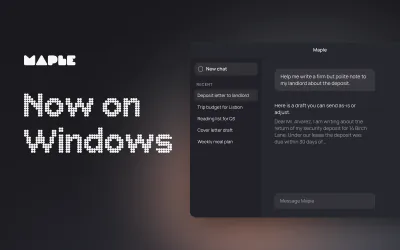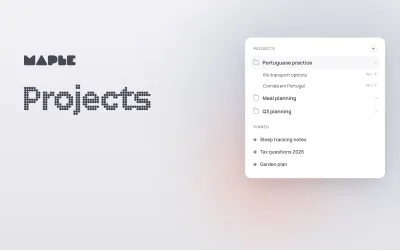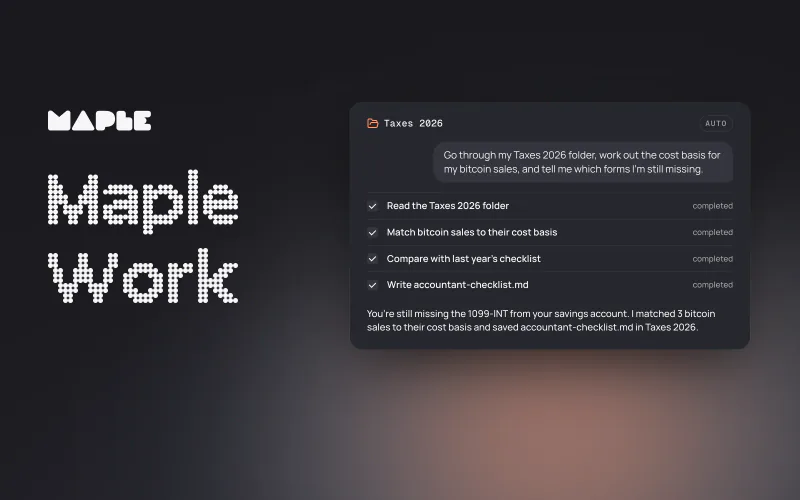
Maple Work is a private AI agent for your desktop: give it a folder and a task, and it plans and does the work, with you choosing how much it can do. Starting today, Maple Work is open to everyone on Mac, Windows, and Linux. All you need is a paid plan. Here's where to get it.
Try the interactive version on the Maple Work page.
If you walk down the street and ask someone what agent they use, you will likely be met with a confused look. Most people still don't know what an agent is, let alone use AI daily for productivity. Occasionally you will find someone who uses an AI agent, and that agent almost certainly is one provided by a company with a closed model and closed codebase.
The frontier labs have led the way into, well, the frontier by building capable agents that help people do more with their time. The problem is that users are required to share their files, thoughts, and computers with these companies.
Want to write an email to management about last month's sales performance? No problem, just need to send all of your financial transactions to an AI company. Want help figuring out annual performance reviews? Easy, just put all of the confidential HR complaints and peer feedback into a package and send it over to an AI company.
We built Maple Work to operate inside your security perimeter, not ask you to turn it off.
Maple Work runs on your laptop and works right alongside you. Give it access to your folders, email, calendar, Google Workspace, Notion, Vercel, and any other app with an MCP server. Then have it help you build and create.
Data sent to the AI is processed by open-weight models running in secure enclaves and protected by Maple's end-to-end encryption. Open models trail the closed frontier by several months and already handle a great deal of real work well, so you no longer have to choose between a capable agent and a private one.
Your data is protected from third parties, even us. Maple can't read it, and it can't be used to train future AI models. That's enforced by cryptography at the core of Maple Work, not by a business policy that can be turned off.
In short, Maple Work is the app you trust with your data.
What can you do? Here are ways I've been using it:
- Running the company: day-to-day operations, raising a round of funding, evaluating new partnership opportunities, and a CRM tailored to what I want.
- My week: reading my email to surface important conversations, and planning and managing my weekly priorities.
- Home: figuring out my taxes with my accountant and scanning my home wifi for security gaps.
- Technical work: navigating complex enterprise dashboards like Microsoft Azure Console and Meta Business, and scanning my code for vulnerabilities.
And on an airplane, I had it revive and boot an old operating system on my laptop so I could play a game from my childhood.
I could go on. When you're working with a tool that is secure and private, the uses are endless.
We packed Maple Work with tons of features and made it expandable. Files and folders, web search, skills, MCP, ACP, Remote Control, sub-agents from the coding tools you already use, Computer Use, and more on the way. All of this is backed by the latest and most powerful open-weight models running in trusted execution environments. Our open-source code is available for anyone to audit, and you can check our encryption yourself.
What is Maple Work?
Maple Work is an AI agent that works in the folders on your computer. You describe a job the way you'd tell a colleague, and it lays out a plan, reads the files, runs the commands it needs and checks the steps off as it goes. The answer comes back in plain words, and the file it made sits in your folder.
You can steer it mid-task, queue the next ask, attach files and images, and pair your computers so a task started on your laptop runs on the desktop at home.
Hand it real work, across your files and apps
Maple Work isn't only for code. Give it a goal that spans a folder and the apps you work in, and it turns that into finished work. A few of the kinds of tasks people hand it:
-
Client work: a status update from the files and Notion
Go through the Harbor & Lane folder and the client's Notion pages, draft this week's status update, and add the open questions to our Notion tracker.
-
Money: payments checked against invoices
Match last month's Stripe payments against the invoices in my Invoices folder and list anything unpaid, duplicated or missing.
-
Security review: input paths traced and filed
Trace user input through payments-service, flag every path that reaches a SQL query or a shell command, and open a Linear issue for each one with the file and line.
-
Planning: research turned into a plan and tickets
Read my notes in the Q1 Planning folder and the roadmap pages in Confluence, write a one-page plan, and create the Jira tasks for it.
-
Home: a claim drafted from photos and shared files
Help me file the water damage claim. Go through the photos and notes in my Home folder and the estimate my contractor shared in Dropbox, and draft the claim letter.
 Notion
 Stripe
 Linear
 Confluence
 Dropbox
The security review is the one to start with if you're a security professional: data-flow audits of code you own or are hired to test, where the material often can't go to a regular AI service. Maple for security work goes deeper.
Private by design, so you can hand it the folder
With most agents, the real question is how much you're willing to give it, because whatever it reads goes to someone else's cloud under a policy. With Maple Work you can give it the whole folder. What it reads goes to a model Maple can't see into.
Maple Work runs on your computer, and your projects and task history stay there. When it needs a model, the request goes over an encrypted connection to Maple's enclave, and what it read from your folder reaches the model as part of the chat, inside the enclave.
The models run in their own attested enclaves. Maple's enclave checks the model's enclave before it forwards a prompt, a bit like the certificate chains behind the lock icon in your browser: you check Maple's enclave, and Maple's enclave checks the model's. You can see how that works or run the check yourself.
Some things sit outside that promise, and each has its own switch. Handing a task to another coding agent runs on that agent's own account and isn't private, and Maple Work labels it as an external agent. Web search, connected apps and custom MCP servers talk to services outside Maple too.
It works with the apps you already use
Connect the apps you already use. If an app has an MCP server, Maple Work can use it, by address or by command. MCP, the Model Context Protocol, is an open standard that a growing number of apps publish so AI agents can work with them.1
MCP (Model Context Protocol) is an open-source standard for connecting AI applications to external systems.
The easy path is built in: 26 popular apps connect with one browser sign-in, and the list keeps growing. Your sign-ins stay on this computer. A few we reach for most:
- Home Assistant: see and control your smart home, connected on your own network.
- Notion: search and update your pages and databases.
- Linear: plan and track issues and projects.
- Jira and Confluence: work with your issues and pages.
- Dropbox: find and read your files.
- Zapier: run your Zaps and the apps they connect.
 Home Assistant: see and control your smart home, connected on your own network.
 Zapier: run your Zaps and the apps they connect.

Your own setup works on day one too: the AGENTS.md you already have and your skills as slash commands. Like web search, connected apps and custom servers talk to their own services, outside Maple's promise.
Computer use. When an app has no connection, Maple Work can look at your screen, click and type. You turn it on in Settings and then per task, and every action goes through your mode.
It also works inside the tools you already use. Over the Agent Client Protocol (ACP), you can use Maple Work from Zed, JetBrains IDEs, Paseo and T3 Code. The optional Local API gives other apps on your computer an OpenAI-compatible endpoint backed by the same enclave models.
You decide what it does on its own
Privacy covers who can see your work. Modes cover what the agent does on your computer: the mistakes and risky steps any agent can make. You pick one per task from the composer and can change it while the task runs.
| Mode | What it can do on its own | When to use it |
|---|---|---|
| Read only | Reads, searches, builds and tests. It asks before anything else. | Looking through a folder you care about, or a first run on a new project |
| Auto (the default) | Most work, including writing files and running scripts. It asks before anything that looks risky. | Everyday tasks where you want to come back to finished work |
| Full access | Everything, without asking. | Throwaway projects, or work you'll review before it leaves your computer |
In Auto, a Maple model checks each step from the action, the folder and your operating system, never from the agent's own reasoning or your files' contents. It asks before pushing, publishing, deleting what can't be made again, reading secrets or running downloaded code.
Auto is a judgment call made by a Maple model, not a guarantee. It isn't a sandbox, and it can be wrong; for computer use, it judges the action, not the screen. If you want it to ask about almost everything, use Read only.

Open models, good enough for most of your work
Maple Work runs open-weight models: DeepSeek V4.1 Flash by default, plus Kimi K3.1 Pro, Kimi K3, GLM 5.3, GLM-5.3 Flash and Gemma 4. You can switch between messages, and as open labs ship new models we add them, each running inside Maple's enclaves.
Here's where they stand. The best closed models are still ahead, usually by several months, and their lead is clearest on the hardest work: long, multi-hour engineering runs, big changes to large codebases, expert-level science and math, and recalling obscure facts without a web search.
For a great deal of real work, open models do the job well: drafting and editing, reading and summarizing long documents, working through a folder of files, research with the web turned on, and everyday coding.
Starting points, not rules: DeepSeek V4.1 Flash for long spreadsheets and documents, GLM 5.3 for careful reasoning like flagging odd contract terms, Kimi K3.1 Pro for longer coding tasks, and Gemma 4 for photos. Our model guide walks through how to pick.
When a job does need the very top, Maple Work can hand it to another coding agent you already have, on your own account. That hand-off isn't private, and Maple Work labels it.
What's not in yet
- Phone control. You can pair your computers, but you can't run Maple Work from your phone yet.
- Scheduled tasks. Tasks start when you ask. There's no “run this every Monday” yet.
- Encrypted task history on your computer. Your task history stays on your computer, protected by your user account, but Maple Work doesn't add its own encryption to it yet.
- Intel Macs. On Mac, Maple Work needs Apple silicon.
We'll keep shipping. Every release lands in the changelog.
How to get started
Maple Work is included with the Pro, Max and Team plans; it isn't on the Free plan. It runs on Macs with Apple silicon, Windows x64 and ARM64, and Linux x86_64. It's open source under the MIT license, so you can read the code first.
Start with one folder and one job you've been avoiding. Leave it on Auto, watch what it asks you, and adjust from there. Don't trust us on the privacy part: verify it.
Grab it today and set it on a task for you. Experience what it's like when you trust the AI app running on your computer.
Welcome to the open frontier.
Sources
- Model Context Protocol, What is the Model Context Protocol (MCP)?. The protocol's own definition of MCP.