Are you ready to experience the power of confidential and private AI? We’ve got you covered. In this article, we'll walk you through the basics of Maple AI and show you how to get started.
What is Maple AI?
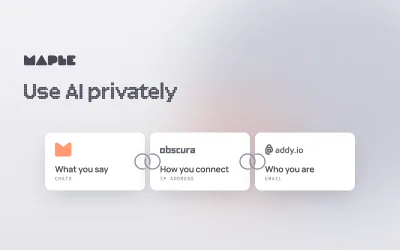
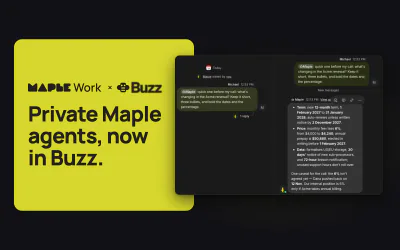
Maple is a private AI platform. Maple Chat is for private conversations with a general-purpose AI assistant, Maple Work is a private AI agent that works in folders on your computer, and Maple Proxy is the encrypted API for your own tools. Unlike other AI tools, Maple is built on a foundation of security and privacy, ensuring that your conversations remain confidential and protected.
Key Features of Maple AI
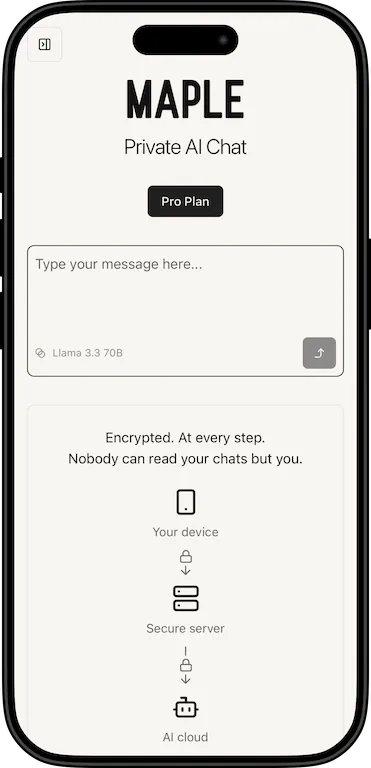
- End-to-end encryption: Your conversations are encrypted on your device and decrypted only inside a hardware-isolated secure enclave, where the AI processes them.
- Secure enclaves: We use secure enclaves to manage your private key encryption, ensuring your data is protected.
- Syncing across devices: Your chats are synced automatically between devices, so you can pick up where you left off on any device, whether it is mobile or desktop.
Getting Started with Maple AI
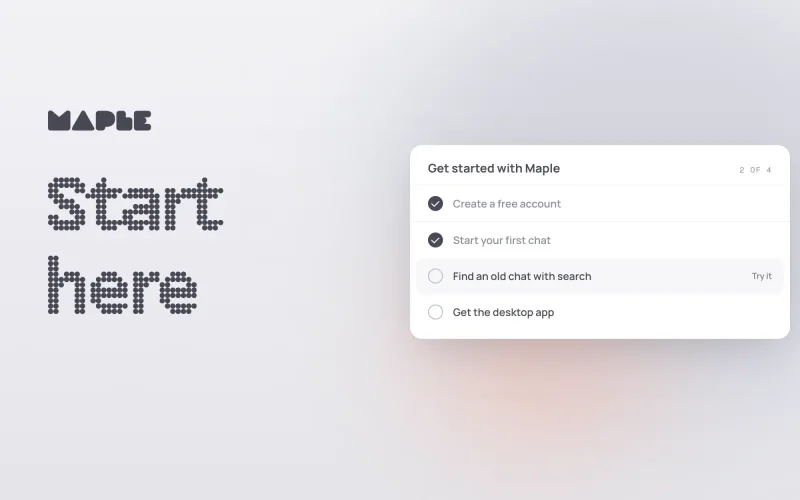
- Sign up for an account: Head over to maple.ai and sign up for a free account. You can choose to start with a free plan or upgrade to a paid plan for more comprehensive features.
- Log in and start chatting: Once you've signed up, start chatting with the AI assistant. You can ask questions, provide information, or simply have a conversation.
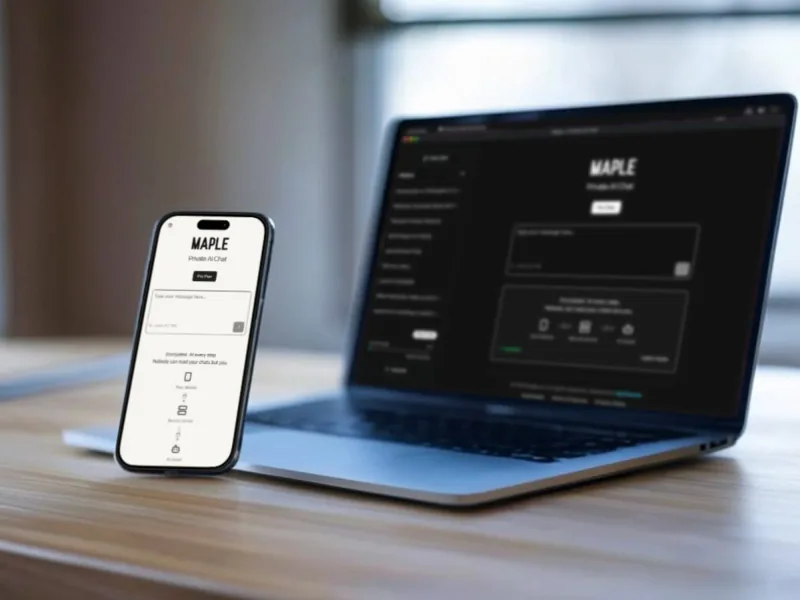
- Explore the interface: Familiarize yourself with the Maple AI interface, which includes features like chat history, search, and usage tracking.
- Try out the AI: Ask the AI assistant a question or provide some information, and see how it responds. You can use Maple AI for personal or work-related tasks, such as writing, research, or brainstorming. We have lots of tips and tricks in our Maple Insights videos on YouTube. To pick a model for your task, see our model guide.
- Apps: Maple Chat runs in your browser and as an app for iPhone and iPad, Android, Mac, Windows and Linux. Maple Work runs on Mac, Windows and Linux on a paid plan. Download them here.
Example Use Cases
Personal Use
1. Brainstorming Ideas
Maple AI is great for brainstorming ideas. Ask the AI assistant to help you develop ideas on a particular topic, and it will respond with suggestions. You can then use these ideas as a starting point for your own brainstorming session. For example, you could ask, "What are some ideas for a summer vacation?" and the AI assistant will provide you with a list of potential destinations and activities.
2. Tutoring on Difficult Coursework
Maple AI can also help with challenging coursework. Ask the AI assistant to explain a concept or topic, and it will provide a clear and concise explanation. You can ask follow-up questions or provide additional information to help the AI assistant tailor its explanation to your needs.
Professional Use
3. Writing Documentation
Maple AI can assist with writing documentation for work projects. Ask the AI assistant to help you write a document on a particular topic, and it will provide a draft you can review and edit.
Here's how it works:
- Give Maple information about your project, this can be in the form of blog posts, code, or your own written explanation.
- Provide relevant information or context.
- Review and edit the draft document.
4. Creating Presentations
Maple AI can also help create presentations for work. Ask the AI assistant to help you create a presentation on a particular topic, and it will provide a suggested outline and content. You can then use this as a starting point for your own creation.
Here's how to get started:
- Ask the AI assistant to help you create a presentation outline.
- Provide relevant information or context.
- When you have your outline fine-tuned, ask it to help you develop detailed content for each slide individually. This can be suggested titles, body text, and suggestions about what kinds of visuals would help explain the concept.
Want to See Maple AI in Action?
For a more in-depth look at Maple, check out our video walkthrough, where we explore the platform's features and capabilities. In this video, we'll show you how to use Maple AI for both personal and work-related tasks, and demonstrate the power of secure and private AI.
This video is part of a YouTube Series called Maple Insights, which has additional videos showing how to utilize Maple to its fullest. More videos are added regularly. Check it out here: https://www.youtube.com/playlist?list=PLgwB-Ekpi4FiNwglx5anvirwa6eJ4FwJn
Pricing Plans
Maple offers a range of pricing plans to suit different needs and budgets. Our plans include:
- Free: $0/month, with 100 requests a day on DeepSeek V4.1 Flash, private chat and web search. An answer that searches the web uses several requests
- Pro: $20/month, with monthly usage included, every model, image and document upload, voice, API access and Maple Work
- Max: $100/month with 10 times Pro's usage, or Max+ at $200/month with 20 times
- Team: $30/user/month, with twice Pro's usage per member, pooled across the team
See every detail on our pricing page.
Conclusion
Maple AI is a game-changing tool that combines the power of AI in the cloud with the privacy of AI on your device. With its end-to-end encryption, secure enclaves, and syncing across devices, Maple AI is the perfect solution for individuals and organizations looking to boost their productivity while protecting sensitive information.
Sign up for a free account today and start experiencing the benefits of confidential AI.