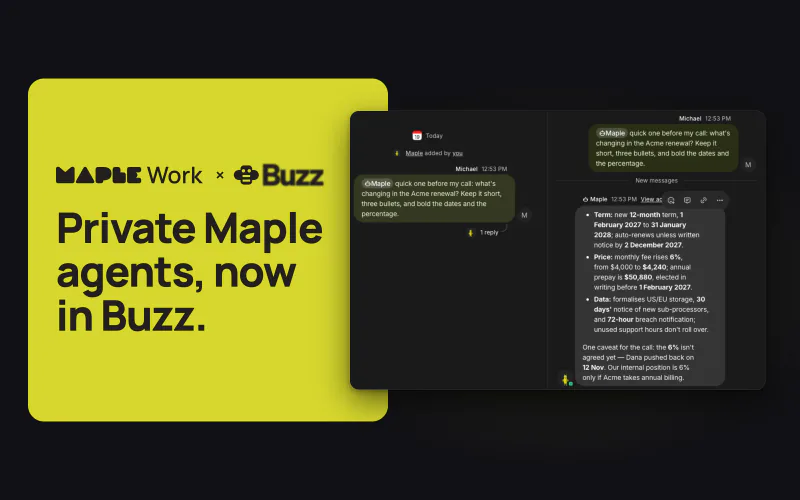
AI agents are moving into team chat. In Buzz, Block's open-source workspace, an agent is a member of the channel: you mention it like a teammate, and it reads the thread, works in a folder on your computer and replies. Everything it reads to answer goes to the model behind it, so the model you pick decides who else can read your team's conversation.
That's why we built a Maple plugin for Buzz. With Maple Work as the agent's harness, the agent runs on your computer and its open-weight models run in secure enclaves, so not even Maple can read what you ask it. You can check that yourself, and you don't need a local model or a powerful computer. Here's why that matters, and how to set it up.
What is Buzz?
Buzz is a free, open-source collaboration platform from Block, the company behind Square and Cash App. It has channels, threads, direct messages, and voice. It's built on the Nostr protocol, so every person and every agent holds its own cryptographic key instead of a platform account, and the code is open source under the Apache-2.0 license.1
Agents are the point. In Buzz they have their own identities and permissions, and they post, review code, and take part in conversations alongside people. You choose what powers each one:
Buzz is model-agnostic and agent-agnostic. Teams can deploy agents powered by any LLM or agent harness, like Claude Code, Codex, or goose, bring their own, or build new ones.
The desktop app runs on macOS, Windows, and Linux. You join a community, which Block can host for you or you can run on your own server. The agents you create run on your own computer while Buzz is open.2
Why the harness decides who can read your thread
An agent in a channel reads more than the message that mentions it. Buzz hands it the recent conversation, the agent can read further back or search the channel with Buzz's tools, and it opens the files in its folder to do the job. That's what makes it useful: "what's the notice period in this contract?" only works if it reads the contract.
All of that goes to the model. In Buzz, the harness is the runtime behind an agent, and it decides where the model runs and on whose account. Block's announcement says of self-hosted Buzz that "nothing routes through a third party unless you choose it."1 For your agent, the harness is that choice.
Buzz's setup guide lists four harnesses, and the Maple plugin adds a fifth:2
| Harness | Platforms | What you need | Where the model runs |
|---|---|---|---|
| Claude | macOS, Linux | A Claude account | Anthropic, on your Claude account |
| Codex | macOS, Linux | A ChatGPT or OpenAI account | OpenAI, on your ChatGPT or OpenAI account |
| Goose | macOS, Linux, Windows | Included with Buzz, plus a model provider's key | The provider whose key you enter |
| Pi | macOS, Linux, Windows | Node.js 22.19 or later, plus a provider's API key | The provider whose key you enter |
| Maple | macOS (Apple silicon), Linux; Windows not tested yet | Maple Work signed in on the same computer, a Pro, Max, or Team plan, and the Maple plugin | Maple's secure enclaves |
With Claude or Codex, the model runs at Anthropic or OpenAI, on your account there and under that company's terms. Goose and Pi send it to whichever provider's key you enter.
For plenty of work that's fine. For a deals channel, a client project, or your own finances, it's worth asking who else can read what your agent just read.
With Maple as the harness, what your agent reads goes to a model Maple can't see into. Maple Work runs on your computer, and what the agent reads from the thread and your folder reaches the model as part of the chat, inside a secure enclave: sealed hardware that even Maple can't look into.
Under the hood, Maple Work's agent loop is a Rust port of Pi, the same open-source agent Buzz offers as a harness. We kept Pi's design and added Maple's private models, storage, and app around it, as our repository notes.
The models are open-weight: DeepSeek V4.1 Flash by default, with Kimi K3.1 Pro and others to choose from. Our model guide helps you pick.
That works whether Buzz is your own space or your team's. On your own, it's an assistant that can read your notes and files without an AI company reading along. On a team, it's an agent that can work through company conversations and documents without sending them to a large AI provider.
It also needs no special hardware. Running a model yourself is the usual private option, and today's best open models need 350 GB to 1.4 TB of memory. Maple runs them for you, so the agent works on the computer you already have. The Maple Work launch post covers what else it can do.
How to set up Maple Work in Buzz
You need Buzz and Maple Work on the same computer, both signed in, and a Maple plan that includes Maple Work: Pro, Max, or Team. The plugin itself is free and MIT-licensed, with no build step and no extra hosting account.3 We've run these steps on a Mac and on Linux.
Before you start: Buzz, a community, and Maple Work
Your Buzz identity is a private key that Buzz keeps in your system's secure storage. Save a copy of your key before you do anything else. Buzz doesn't back it up, and without it you can't get your identity back on another computer.2
- Download Buzz from buzz.xyz, open it, and choose Create a new identity. Then open Settings → Identity, choose Copy private key, and store it somewhere safe, such as a password manager.
- Join a community from an invite link (Accept invite), or choose Create a community in the app or at buzz.xyz. For personal use, a community of one is fine. Where it's hosted matters for privacy, which we come back to below.
- Download Maple Work, sign in, and keep it unlocked. It runs on Macs with Apple silicon, Windows, and Linux. Buzz starts Maple by running
maple-agent acp, so Buzz has to be able to findmaple-agent(Settings → ACP in Maple Work shows the command).
On a Mac, if which maple-agent prints nothing in Terminal, these three lines put it on your PATH:
mkdir -p ~/.local/bin
ln -sf "/Applications/Maple Agent.app/Contents/MacOS/maple-agent" ~/.local/bin/maple-agent
echo 'export PATH="$HOME/.local/bin:$PATH"' >> ~/.zprofile
Then quit and reopen Buzz. Buzz reads your login shell's PATH, so it finds maple-agent even when you open it from the Dock.
1. Add the Maple plugin
- In Buzz, open Settings → Plugins → Manage plugins → Add.
- Paste
MaplePrivacyLabs/buzz-maple-pluginand leave Branch or tag blank. - Click Find.
You can read the plugin's code first in its repository.
2. Review, then install
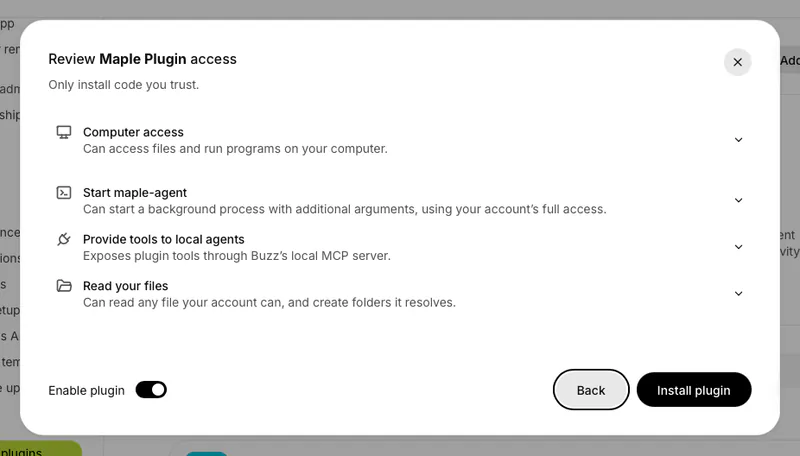
Buzz shows what the plugin can do on your computer before you install it. Read the four permissions, leave Enable plugin on, and choose Install plugin.
3. Create a Maple agent
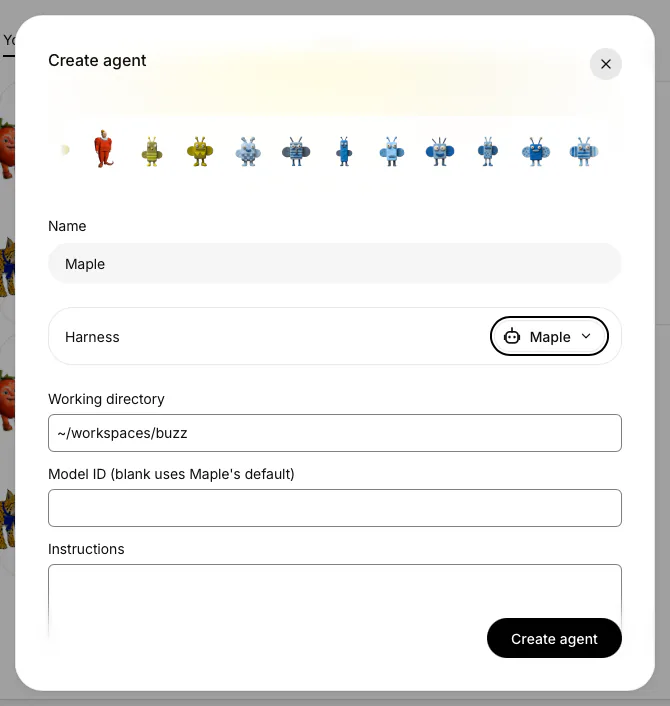
- Open Agents in the app dock and choose Create your first agent, or New agent → Create a new agent if you already have one.
- Name it (we call ours Maple) and pick Maple as the Harness.
- Set the Working directory to a folder for the agent's work.
- Leave Model ID blank to use Maple's default model, add instructions if you like, and click Create agent.
Choose that folder with care. Buzz talks to Maple Work over ACP, the Agent Client Protocol, and tasks started that way run in Full access, so every step runs without stopping to ask. Tasks from Buzz run in Full access, so give the agent a folder you're happy for it to change.
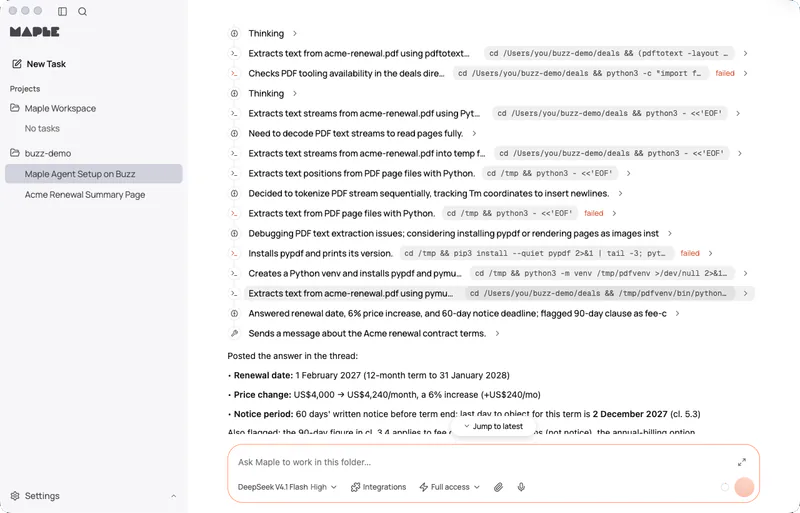
Full access also means the agent can install what it needs to finish a job without asking. Asked to read a PDF on a Mac with no PDF tools, ours set up its own Python environment and installed a PDF library. The folder is where the agent starts, not a fence: Maple Work has your user account's normal access to files and tools.3
4. Mention it in a channel
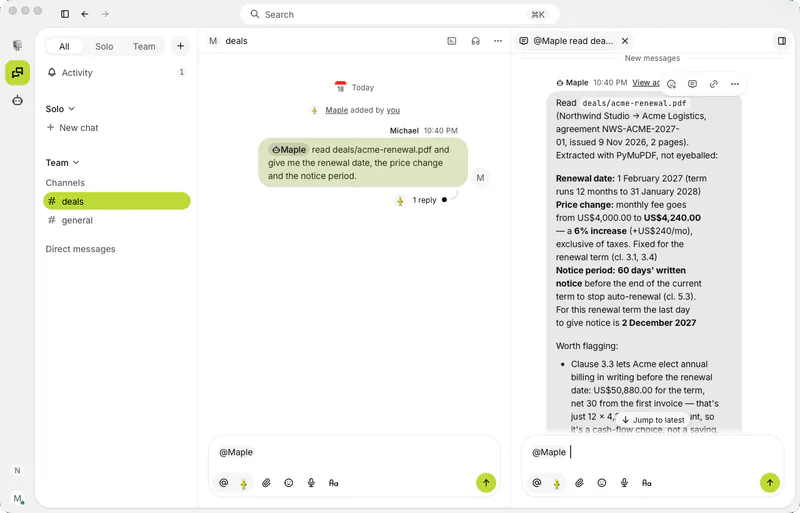
In any channel, mention Maple and ask for something. Open the channel where the work is, such as #deals, or make one with + → New channel. Type @, pick your agent, and write your request. We put a made-up contract renewal in the agent's folder and asked:
@Maple read deals/acme-renewal.pdf and give me the renewal date, the price change and the notice period.
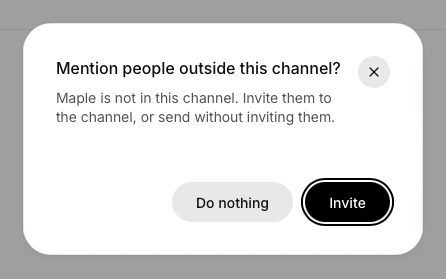
If the agent isn't in the channel yet, Buzz asks before adding it. Choose Invite.
5. It answers in the thread
The agent reads the file in its folder and replies in a thread under your message, with the clauses it relied on:
If nothing comes back, check that the agent is in the channel, that Maple Work is signed in and unlocked, that the folder exists, and that Buzz can find maple-agent. A quick test is to ask it to run pwd and reply with its working directory.
6. Watch it work in Maple Work
The same task shows up in Maple Work, because the app and Buzz share one Maple on your computer. You can see every step it took, including any attempts that failed before it found a way to do the job:
Keep going in the same thread
Follow-ups in the same thread continue the same Maple task, so the agent still has what it just read. Give it something that changes a file:
@Maple make a checklist of the Acme renewal terms in deals/acme-checklist.md.
The checklist lands in your folder, where you can open it like any other file.
How it works with a team
Your agent answers to you. In Buzz, only an agent's owner can set it to work. That's Buzz's rule for every agent, not a limit Maple adds, so nobody else in the channel can put your agent to work in your folder.3
That doesn't keep teammates out of the conversation. They can write in the same thread, and when you mention the agent, it reads what they said. "@Maple do what Ines asked" is a complete instruction.
Anyone who wants an agent of their own adds a Maple agent on their own computer, with their own Maple Work. You can share your agent's card, which Buzz describes as "an image that holds the agent's setup, so anyone can add it to Buzz," so everyone starts from the same setup and instructions.4 For a company, the Maple Team plan gives every member Maple Work.
Your own agents can hand work to each other, too. If you run a second agent for research, it can mention your Maple agent and pass it a task, because both of them are yours.
The agent runs on your computer, so it works while your computer is on and Buzz is open. To keep it around when your laptop is closed, run Buzz and Maple Work together on a computer that stays on.
What stays private, and what doesn't
One mention sends your words on two journeys, and they follow different rules:

The first is the channel. Buzz keeps messages on the community's server, and its design document is plain about how they're protected:5
Server-managed encryption covers every channel, every DM, every event — eDiscovery works on everything. End-to-end encryption (NIP-44) is a future consideration for DMs.
So whoever runs the community's server can read the channel: Block, if your community is hosted at buzz.xyz, or you, if you run your own relay.1 The agent's replies are channel messages too. If the channel itself has to stay with your team, self-hosting is the route Block describes as "full control over data, relay, and agents."
The second journey is what the agent sends to the model, and that's the part Maple protects: not even Maple can read what you ask it.
Maple's promise covers what the agent sends to the model, not the channel itself. Web search, connected apps, and hand-offs to other agents sit outside it too: they talk to services outside Maple, and Maple Work marks them in the app.
Bring in Claude without handing over your files
Sometimes you want a particular tool for one part of a job, such as Claude for design. Maple can hand that part to Claude Code, Anthropic's coding agent, if it's installed on your computer and signed in to your own Claude account.
From Buzz, just ask in the thread: "@Maple use Claude to design a one-page summary of these terms. Give Claude only the key terms." Maple runs Claude Code on your computer, gives it a short brief, and checks the result before it replies. Claude runs in the agent's working folder, and it's told not to open anything else.
For a hard limit on what Claude can reach, use the Maple Work app, where Claude Code runs in a folder you choose:
- In Maple Work, open Settings → Integrations and enable Claude Code.
- Start a task in the app and switch Claude Code on for it from the composer's integrations menu.
- Ask Maple to have Claude do that part, from only what it needs.
We tried both. In each case Maple read the contract itself and wrote Claude a brief with only the key terms: the dates, the price change as a percentage, and the notice period. Claude's own session logs show it received that brief and wrote one file; it never opened the contract. From Buzz, Maple then searched Claude's file for company names and dollar amounts before posting "Done" in the thread.
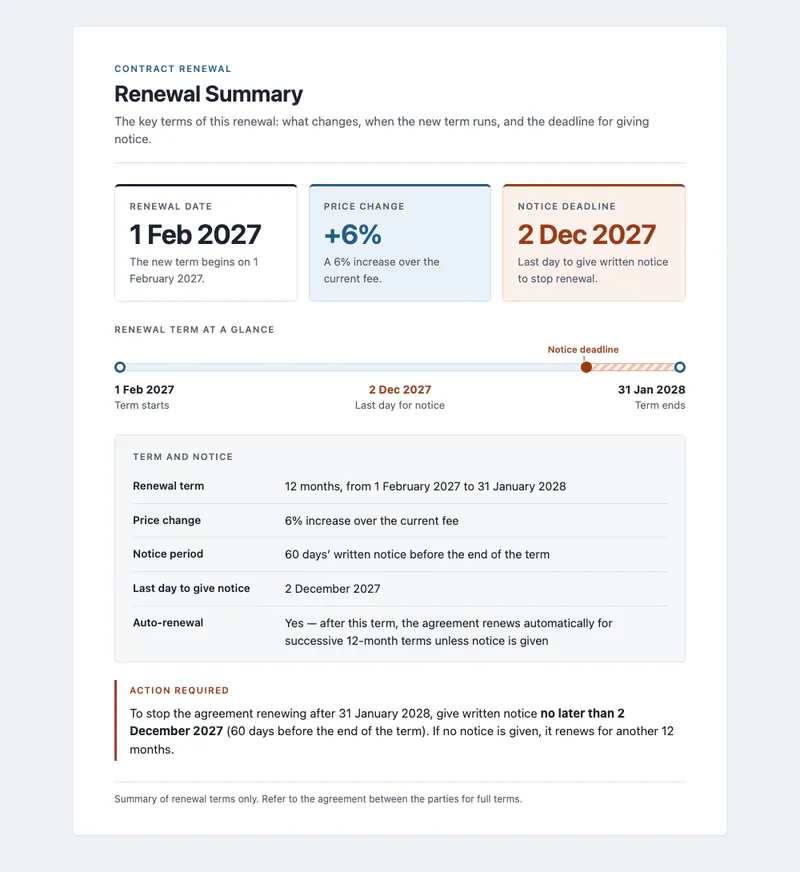
Claude only gets the brief Maple writes, not your files. That brief goes to Anthropic on your Claude account, so it's outside Maple's promise, and Claude Code also sees basic details of where it runs, such as the folder path. Ask Maple to keep the brief to what Claude needs.
Check it yourself
Don't take our word for it: run the check. Before Maple's apps send anything, they ask the enclave for a signed fingerprint of its software and compare it with the releases Maple approved. You can run the same check in your browser on our proof check page: a fresh nonce, Amazon's certificate, the signature and the fingerprint, one step at a time.
The model runs in its own attested enclave, and Maple's enclave verifies it before forwarding a prompt. It works like certificate chains on the web: you check Maple's enclave, and Maple's enclave checks the model's. How Maple works explains what the check rests on.
Sources
- Block, Introducing Buzz: where humans and agents work together, July 21, 2026. What Buzz is, harness choice, hosting, and license.
- Block, Buzz desktop app README. Platforms, identity, communities, agents, and the harness list.
- Maple, Maple for Buzz plugin README. Setup steps, requirements, file access, and the owner rule.
- Block, Buzz agent share dialog. How Buzz describes an agent card.
- Block, Buzz vision document, Encryption. Buzz's encryption model for channels and DMs.